Red Flag Alert — Credit Check & Find Leads
v2.15
Connect your Salesforce CRM to live Red Flag Alert data to enrich and credit check companies, find and create new B2B leads, and monitor portfolio risk.
WHAT OUR APP OFFERS
Credit Check
Enriches Lead and Accounts records with Red Flag Alert data and generate new leads/contacts.
Find Leads
Find and generate lead records from the Red Flag Alert database.
Field Mapping
Map up to 80 Red Flag Alert data fields to our custom fields or your own fields. Switch on/off fields.
Monthly Accounts Refresh Feature
Updates ALL your account records that have company numbers with Red Flag Alert data. Executes on the last day of each month.
Manual Accounts Refresh Feature
Same as the Monthly Accounts Refresh, but you can run once per day.
Gazette Notifications
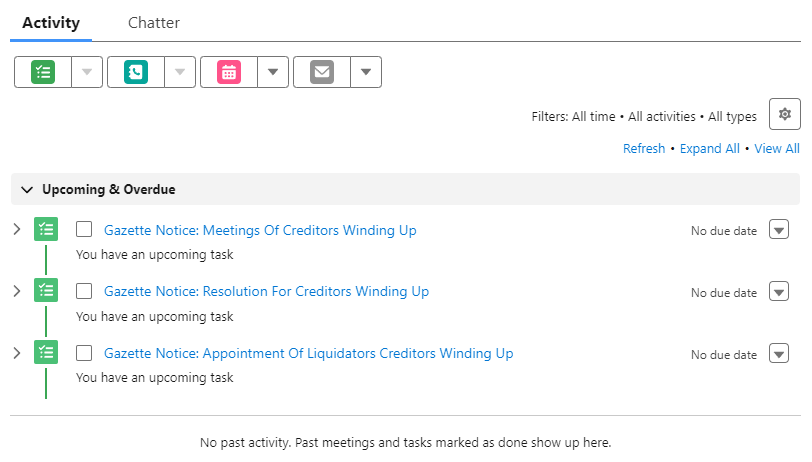
Notifies you within two hours of any company gazette notice by creating a task associated with the Account record.
Click here for more information about Gazette notifications.
Minimum CRM edition requirements.
Our App requires the enterprise edition.
WARNING: What impact our App has on your Data.
The monthly and manual accounts refresh feature will update ALL your account records depending on the field mapping configuration.
These features are switched off by default.
Installation
We will give you the salesforce package URL to install.
Uninstallation
Click on Apps, Click Packaging, Click Installed Package, Uninstall Red Flag Alert B2B Leads & Credit Check
WARNING: By uninstalling the App, you will lose all Red Flag Alert data.
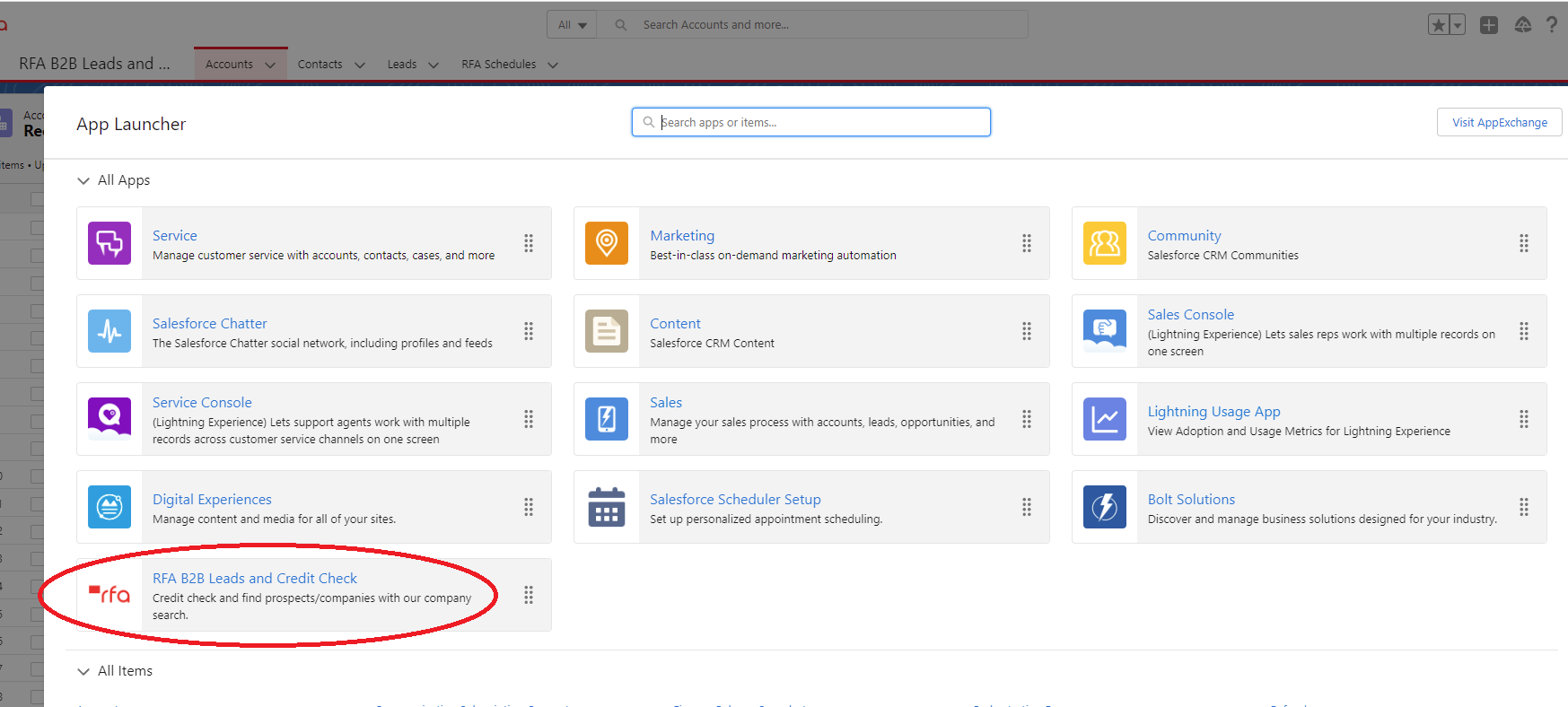
Red Flag Alert Salesforce App Launcher
AUTO ENRICHMENT FEATURE
Automatic enrichment of lead records with Red Flag Alert data.
HOW IT WORKS
When a lead record is created, a trigger will run to enrich it using the company name, Red Flag Alert company number, and postcode.
CREDITS: Each lead enrichment will be one credit, if you have no credits, no enrichment will be done.
SWITCHING AUTO ENRICHMENT ON/OFF (Default OFF)
- Open the App, click on the admin button.
- Click ON/OFF switch for “Auto Enrichment (Leads)
FIELD MAPPING
Map your Accounts and Lead salesforce fields to Red Flag Alert data.
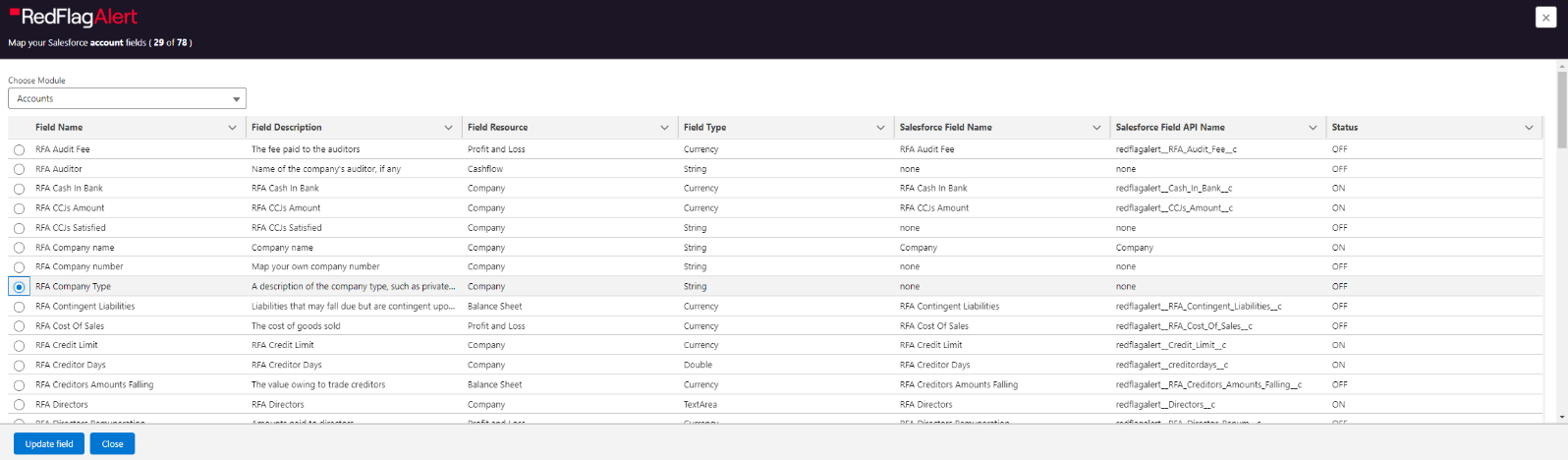
Button: Update Field
If the field is switched off, the field will not be updated.
MONTHLY ACCOUNTS REFRESH FEATURE
Ability to switch on or off the monthly refresh scheduler, which updates ALL your account records that have company numbers with Red Flag Alert data.
- The scheduler will run on the last day of each month, for every calendar month.
- Fields updated are based on your account field mapping.
- Telephone and address will not be updated.
- No credits are used for this feature.
How to switch this feature on or off.
- Click the “Admin” button on any lead or account record.
- Click the “Switch on scheduler” Start button.

MANUAL LEADS/ACCOUNTS REFRESH FEATURE
Same feature as Monthly Account Refresh, but with the ability to run it manually.
- Fields updated are based on your account field mapping.
- Telephone and address will not be updated.
- No credits are used for this feature.
- Allowed once per day.
How to run this feature for Accounts
- Click the “Admin” button on any lead or account record.
- Click the “Refresh all Accounts manually” Run button.
How to run this feature for Leads
- Click the “Admin” button on any lead or account record.
- Click the “Refresh all Leads manually” Run button.
GAZETTE NOTIFICATIONS
The ability to switch on or off the Gazette Notification feature, which will notify you within two hours of any company gazette notice by creating a task associated with the Account record.
No credits are used for this feature.
Gazette Notification types (19)
- Administration Order
- Administrative Receiver Appointed
- Corporate Voluntary Agreement
- High Court Writ
- Joint Administrator Appointed
- Liquidator Appointed
- Meeting of Creditors
- Petition Dismissed
- Petition to Wind Up
- Petition Adjourned
- Receiver Manager Appointed
- Striking Off Suspended
- Striking Off Application
- Striking Off Notice
- Striking Off Withdrawn
- Unadvertised Petition to Wind Up
- Voluntary Winding Up
- Winding Up Order Rescinded
- Winding Up Order
How to switch this feature on or off.
- Click the “Account/Gazette” button on any lead or account record.
- Click the “Switch on Gazette notifications” Start button.
Example tasks created.
ACCOUNT/LEAD MAIN PAGE
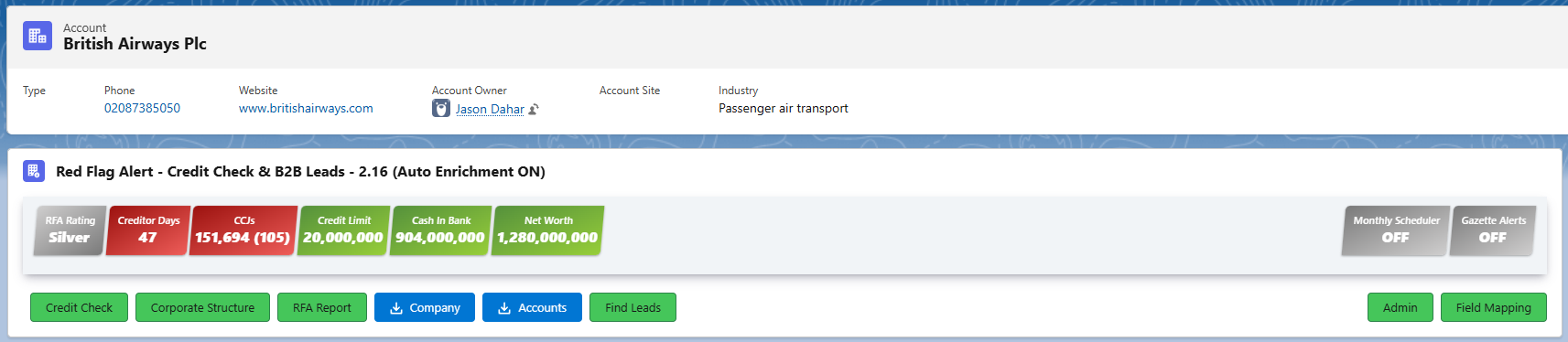
Button: Credit Check
Enriches Lead and Accounts records with Red Flag Alert data and find new leads/contacts.
Button: Corporate Structure
Displays the full corporate hierarchy related to the current Account record, including parent and subsidiary companies.
Button: Red Flag Alert Report
URL link to Red Flag Alert portal for the associated company.
Button: Company
Download the Red Flag Alert full company report as a PDF attachment.
Button: Accounts
Download the latest company accounts as a PDF attachment.
Button: Find Leads
Generate lead records.
Button: Admin
Switch on/off monthly account refresh and gazette notifications.
Button: Field Mapping
Ability to map up to 80 Red Flag Alert Data fields to your Salesforce fields.
CREDIT CHECK
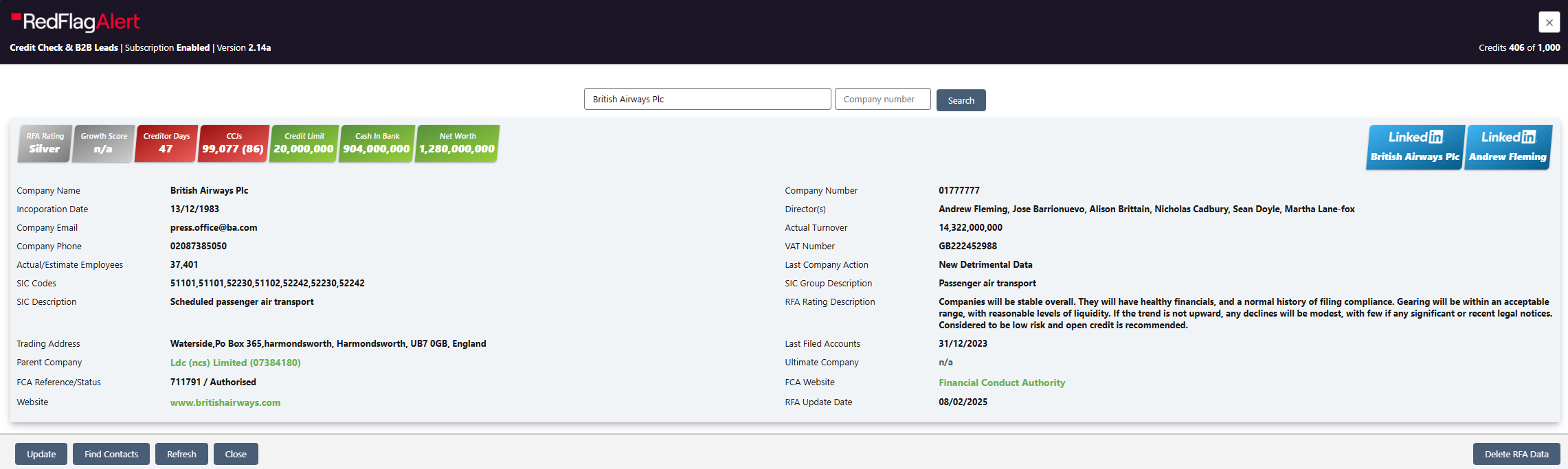
Button: Update
Updates the current record with Red Flag Alert data, based on the field mapping.
Button: Find Contacts
Using the record website domain name, find contacts for the company.
Button: Refresh
Updates the current record using the associated company number with Red Flag Alert data, based on the field mapping.
No credits used.
Button: Close
Close the app.
Button: Delete Red Flag Alert Data
Removes all the Red Flag Alert data, based on the field mapping.
CORPORATE STRUCTURE
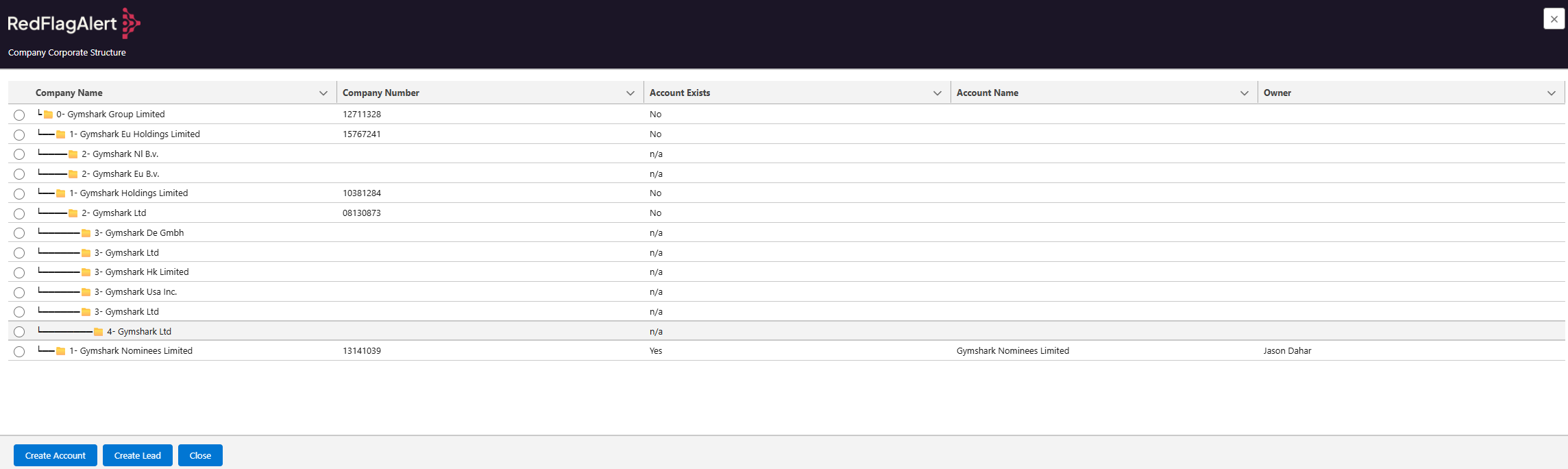
Displays the full corporate hierarchy related to the current Account record, including parent and subsidiary companies.
Includes what companies you already have within your CRM.
Button: Create Account
Creates a new Account record for the selected company in the table.If an Account already exists with the same Company Number, no new record will be created.
Button: Create Lead
Creates a new Lead record for the selected company in the table.If a Lead already exists with the same Company Number, no new record will be created.
FIND CONTACTS (Accounts and Leads)
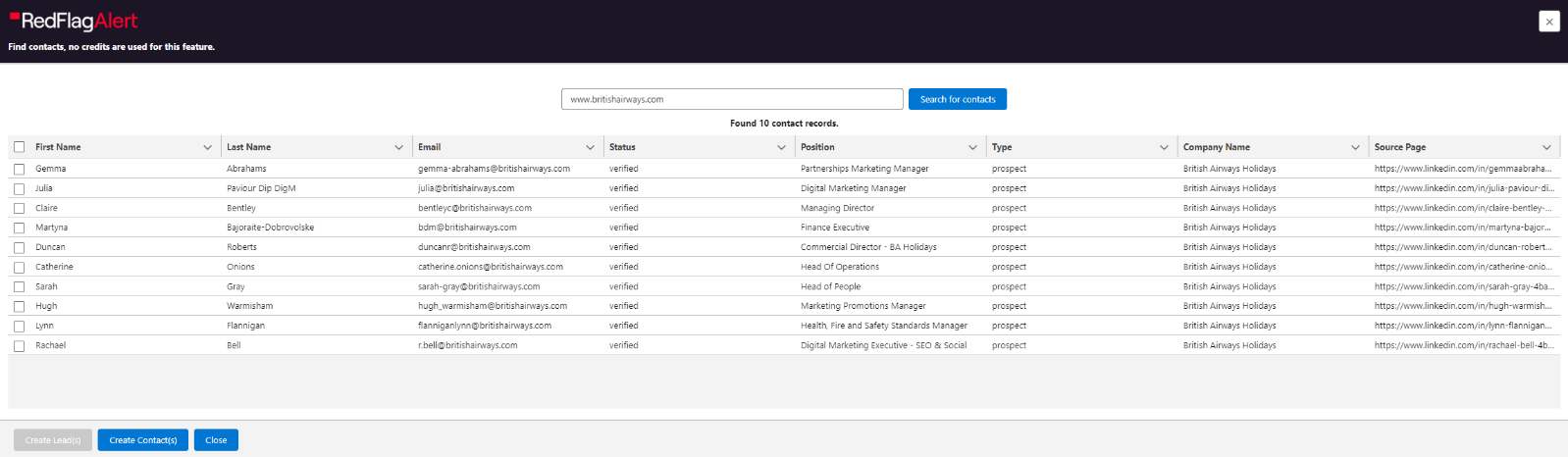
Button: Create Leads(s)
If the current record is a lead, create a new lead record for each contact selected.
Button: Create Contact(s)
If the current record is an account, create a new contact record for each contact selected.
FIND LEADS - CRITERIA
Search criteria screen.
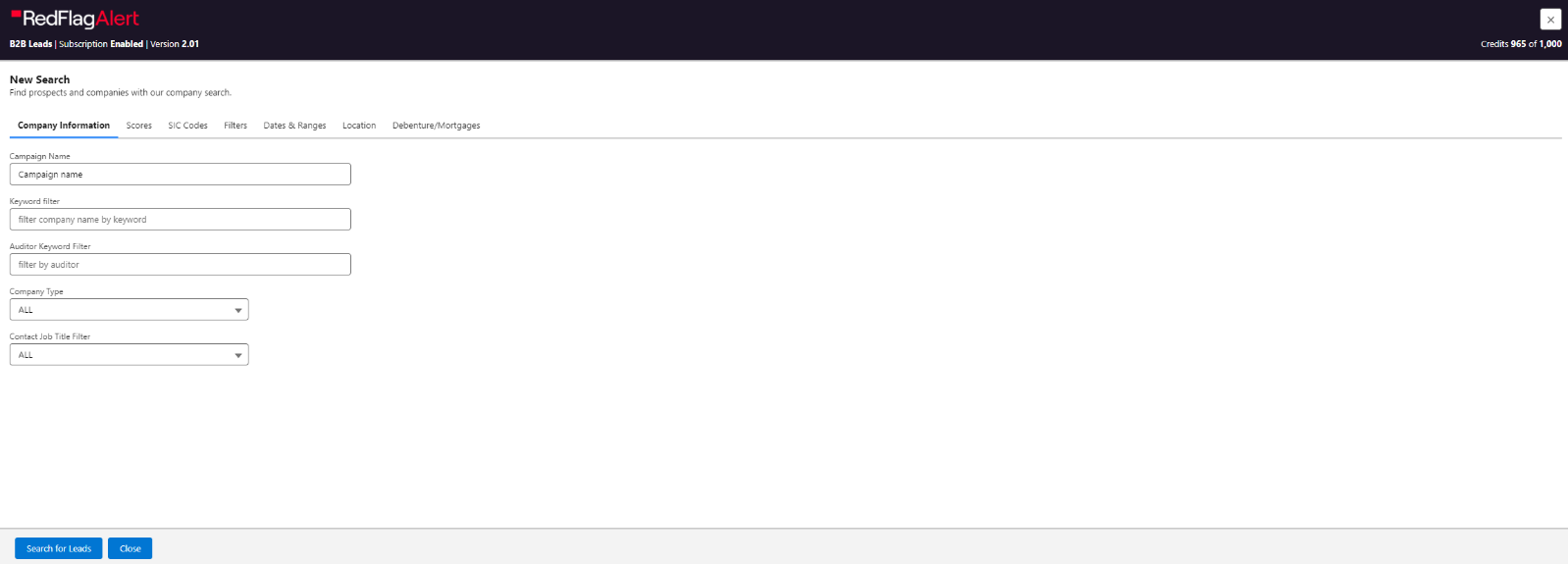
Button: Search for Leads
Searches Red Flag Alert database for companies that match your criteria.
Button: Clear
Clear all your search criteria.
Find Leads – Search Results
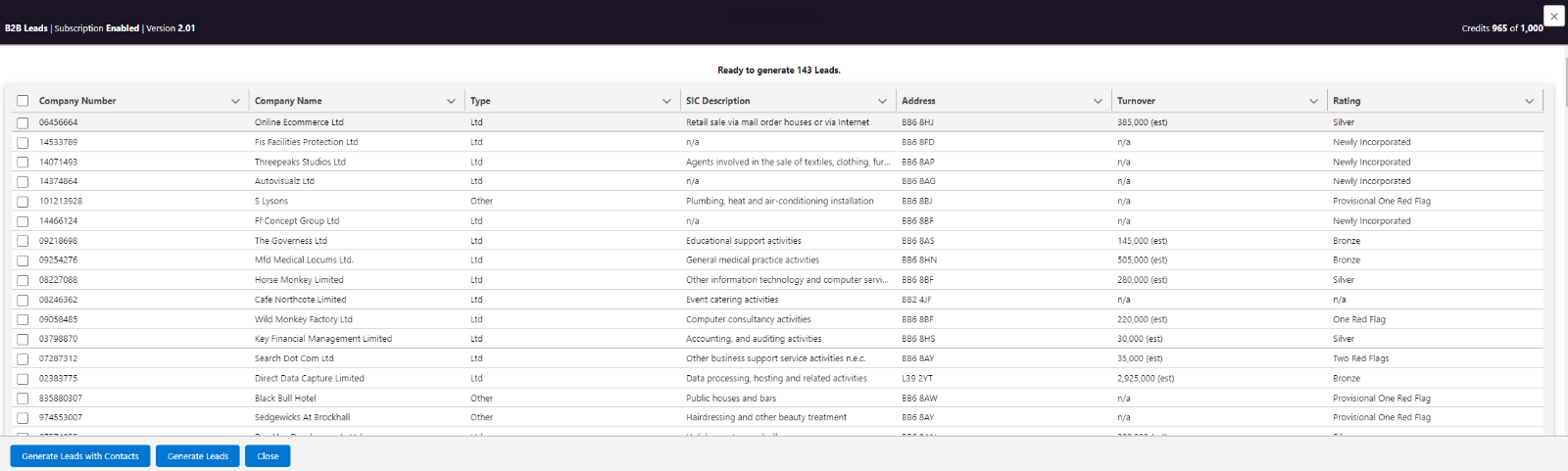
Button: Generate Leads with Contacts
Create a lead record for each company found, and a lead record for each contact found.
Button: Generate Leads
Create a lead record for each company found.
TECHNICAL DETAILS
Module: Lead, Account, Contact
All our custom fields are prefixed with “Red Flag Alert”.
Content Security Policy Trusted Sites
Remote Site Settings
Custom Object: Red Flag Alert Schedules
Records in this object are used to generate new lead records.
Apex Red Flag Alert Schedule Jobs
Find Leads Scheduler – Schedule Job “B2B Scheduler - Every hour at 00”.
This job is executed every five minutes.
Monthly Accounts Refresh Feature - Schedule Job “Red Flag Alert Accounts Refresh”.
This job is executed on the last day of each month.
Manual Accounts Refresh Feature – Schedule Job “Red Flag Alert Accounts Refresh - Now”.
This job is executed only once.
Gazette Notifications – Schedule Job “Red Flag Alert Gazette Notifications”.
This job is executed every two hours.
MODULE: LEADS – CUSTOM FIELDS
MODULE: ACCOUNTS – CUSTOM FIELDS
MODULE: CONTACTS – CUSTOM FIELDS
Portfolio Manager
Introduction
This guide explains how to integrate the Red Flag Alert Portfolio Manager with Salesforce CRM, enabling your sales and compliance teams to monitor company risk, receive real-time alerts, and enrich account records—all without leaving Salesforce.
What is Portfolio Manager?
Red Flag Alert's Portfolio Manager allows you to track financial health, risk events, and changes across your customer and prospect base. You can monitor:
- Insolvency risk
- Credit scores
- CCJs
- Company events (e.g. PEPs, gazette notices, filings)
Impact on your Salesforce CRM
Red Flag Alert processes portfolio events every day, 24/7.
When a portfolio company event occurs:
- The Red Flag Alert data on the associated Salesforce account record is automatically refreshed.
- A company note is created in Salesforce summarising all relevant events affecting that company.
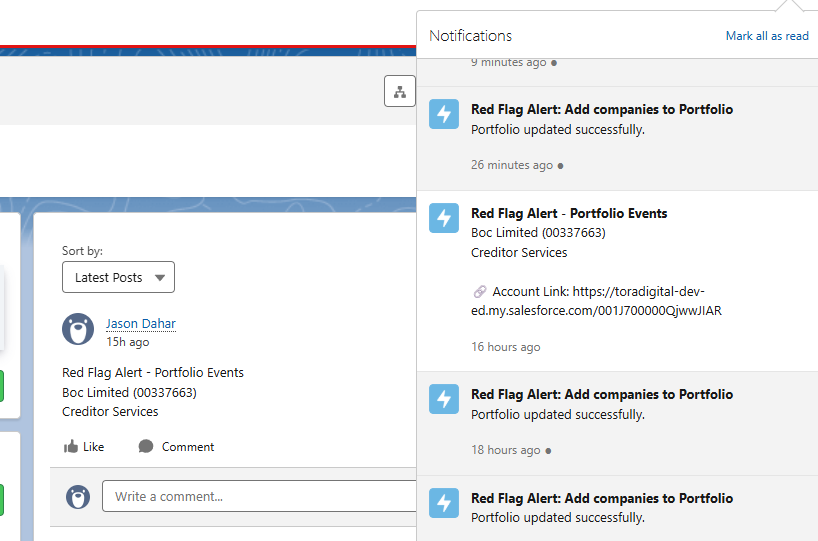
How to Access Portfolio Manager
The app will appear on your Accounts page.
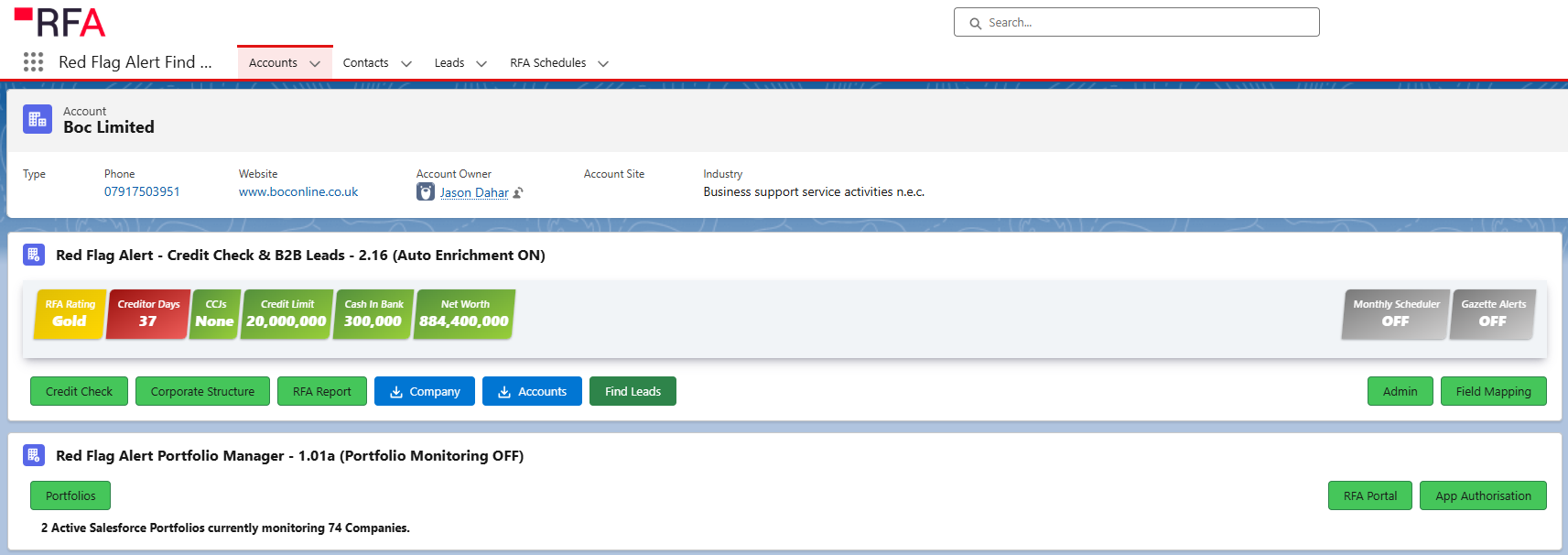
Button: Portfolios
View your porfolios.
Button: Red Flag Alert Portal
Opens a new tab to access your Red Flag Alert portfolio portal.
Button: App Authorisation
Connect your Red Flag Alert account to your Salesforce CRM.
View Portfolios
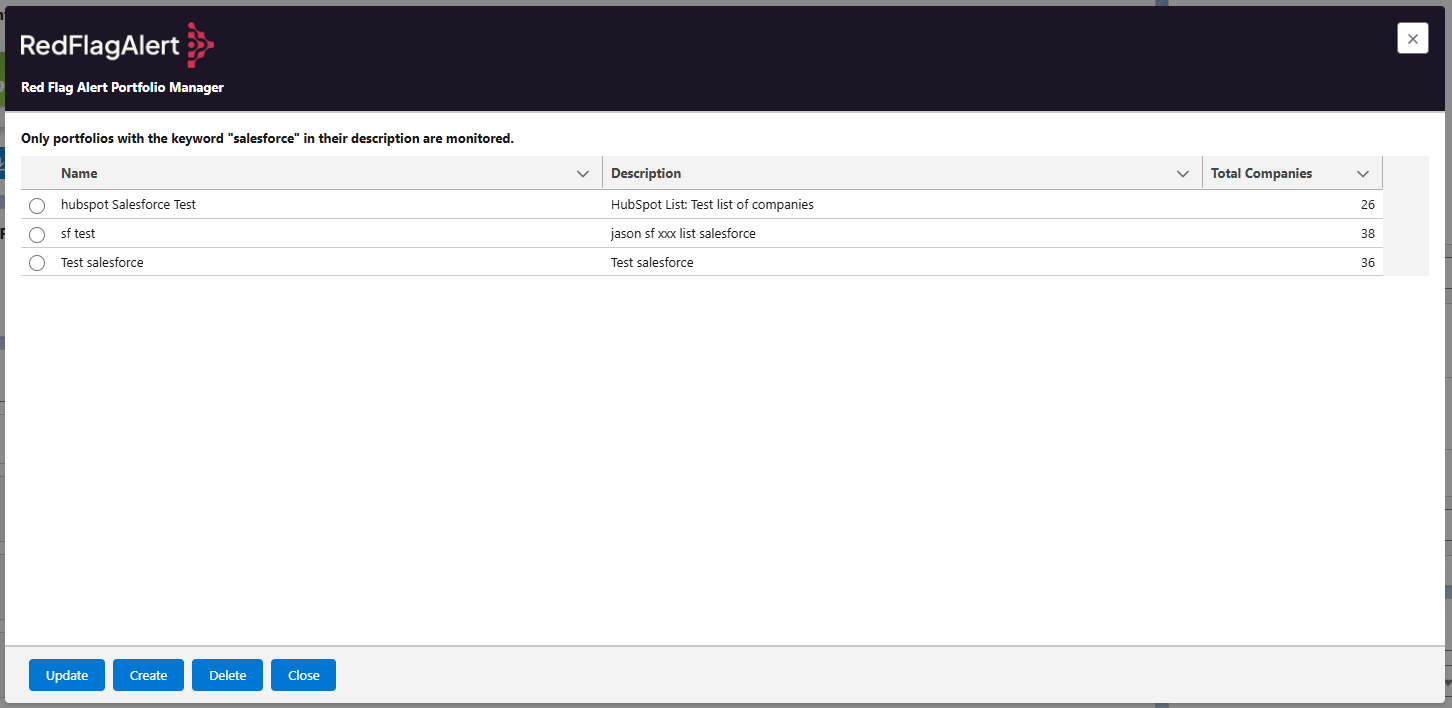
Button: Update
Update the highlighted portfolio.
Button: Create
Create a new portfolio.
Button: Delete
Deletes the highlighted portfolio.
Create or Update the Portfolio
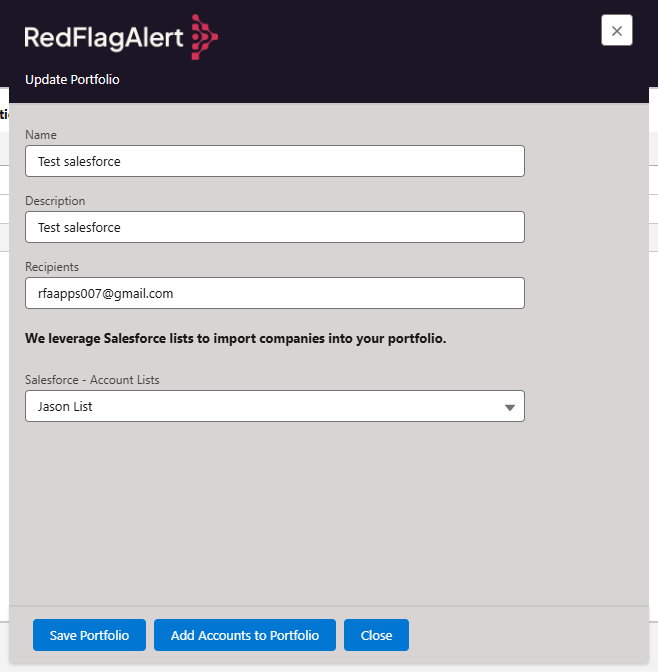
Portfolio Description: The portfolio description must contain the word “Salesforce”, so our servers can identify portfolios linked to your Salesforcet CRM.
Recipients: Add emails, that you would like to receive event notifications.
Button: Save
Save portfolio details.
Button: Add companies to Portfolio
This action will add all the companies in your Salesforce List to your portfolio.
Before you install
Have you read the user guide and installation instructions for this app?
Please make sure you've reviewed them before installing.