
Red Flag Alert — Portfolio Manager
v1.01a
Monitor company risk across your customer and prospect base and receive real-time alerts inside Dynamics 365, with account records enriched automatically.
Introduction
This guide explains how to integrate the Red Flag Alert Portfolio Manager with Dynamics CRM, enabling your sales and compliance teams to monitor company risk, receive real-time alerts, and enrich account records—all without leaving Dynamics.
What is Portfolio Manager?
Red Flag Alert's Portfolio Manager allows you to track financial health, risk events, and changes across your customer and prospect base. You can monitor:
- Insolvency risk
- Credit scores
- CCJs
- Company events (e.g. PEPs, gazette notices, filings)
Impact on your Dynamics CRM
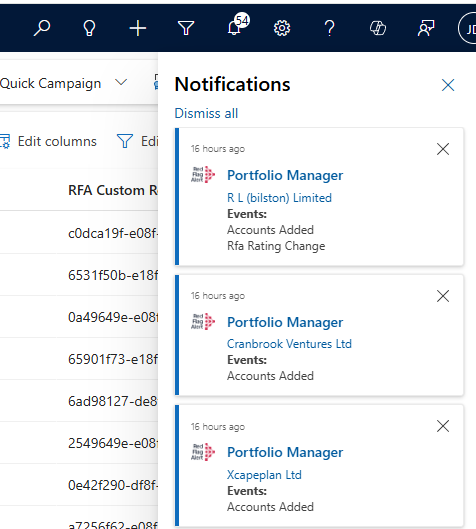
Red Flag Alert processes portfolio events every day, 24/7.
When a portfolio company event occurs:
- The Red Flag Alert data on the associated Dynamics account record is automatically refreshed.
App Authorisation
To enable our servers to process your portfolio events, you’ll first need to create a refresh token.
How to set it up:
- In the app, go to Settings → Configure Accounts Refresh.
- Follow steps 1 – 4.
Portfolio Manager - App Authorisation
- Enter your Red Flag Alert username and password.
- Click Save.
You only need to do this once, and note that only one Red Flag Alert account can be linked to your Microsoft Dynamics 365 CRM.
How to Access Portfolio Manager
Open the Red Flag Alert App and click the Portfolio Manager tab.
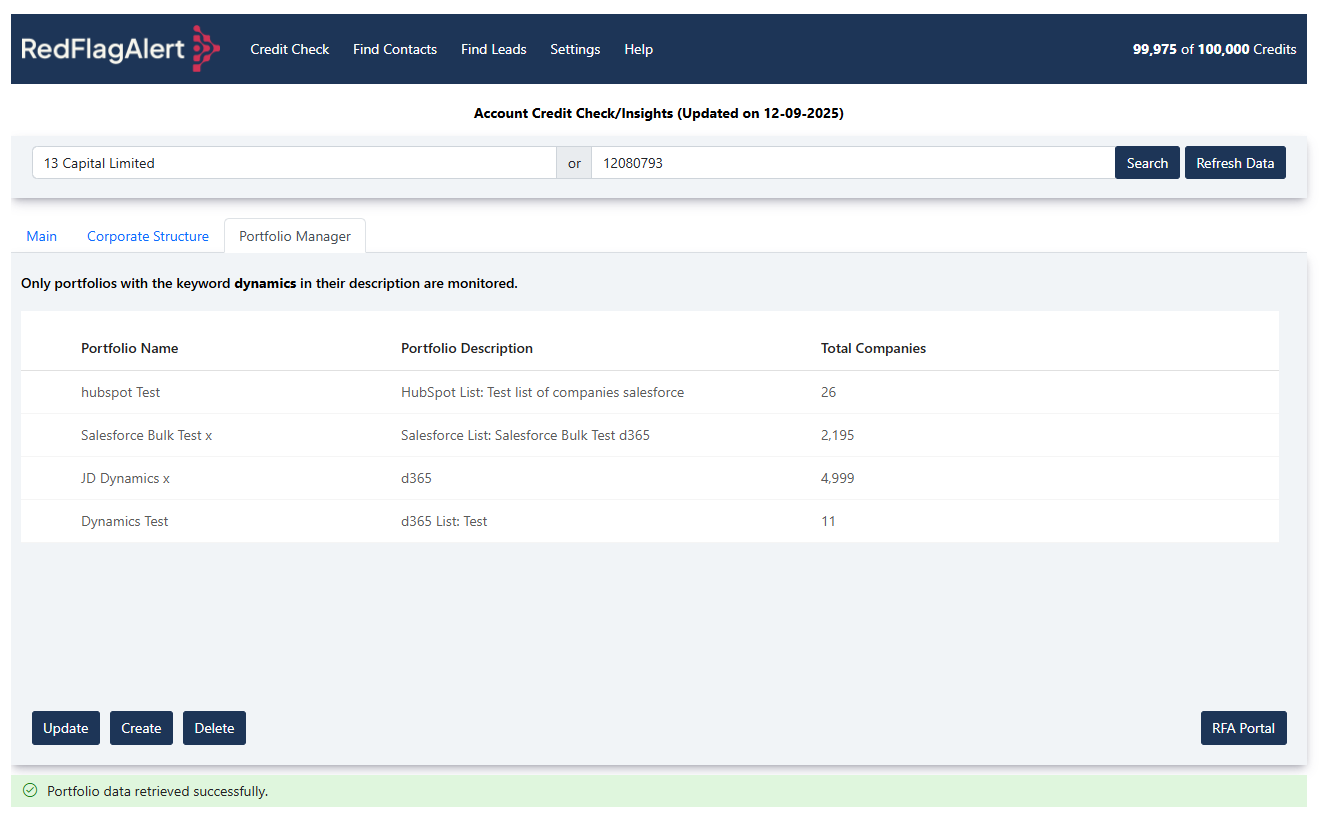
Button: Update
Update the highlighted portfolio.
Button: Create
Create a new portfolio.
Button: Delete
Deletes the highlighted portfolio.
Button: Red Flag Alert Portal
Opens a new tab to access your Red Flag Alert portfolio portal.
Create or Update the Portfolio
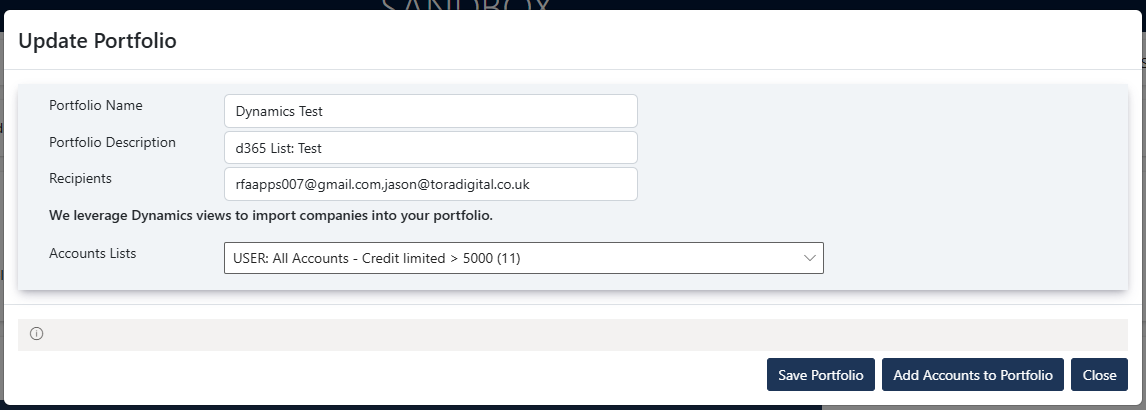
Portfolio Description: The portfolio description must contain the word “s365”, so our servers can identify portfolios linked to your Dynamics CRM.
Recipients: Add emails, that you would like to receive event notifications.
Button: Save Portfolio
Save portfolio details.
Button: Add Accounts to Portfolio
This action will add all the companies in your Accounts List to your portfolio.
Before you install
Have you read the user guide and installation instructions for this app?
Please make sure you've reviewed them before installing.