
Red Flag Alert — Credit Check & Find Leads
v4.02
Connect your Dynamics 365 CRM to live Red Flag Alert data to enrich and credit check accounts and leads, find new leads, and monitor portfolio risk.
HOW TO INSTALL OUR APP
Please note that our app is compatible with Microsoft Dynamics 365 9.1 and above.
To install it, follow these steps:
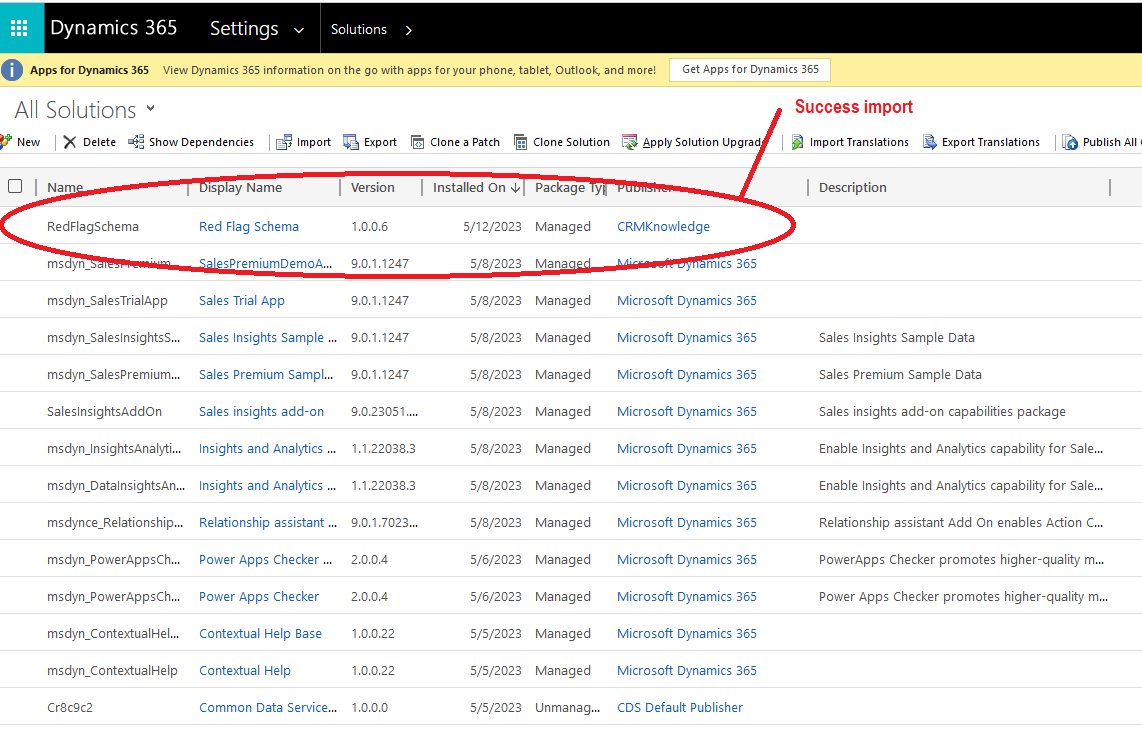
1. Click on "Advance Settings."
2. Select "Customisation."
3. Choose "Solutions."
4. Click on "Import" and proceed to import the provided zip file. (We will provide you with this file.)
This will enable you to install and integrate our app with your Microsoft Dynamics 365 platform.
ACCESSING THE APP
To access the "Red Flag Alert" functionality, follow these steps:
1. Open any Account or Lead record in your system.
2. Look for the "Red Flag Alert" button within the record.
3. Click on the "Red Flag Alert" button to access the associated features and information related to that particular Account or Lead record.
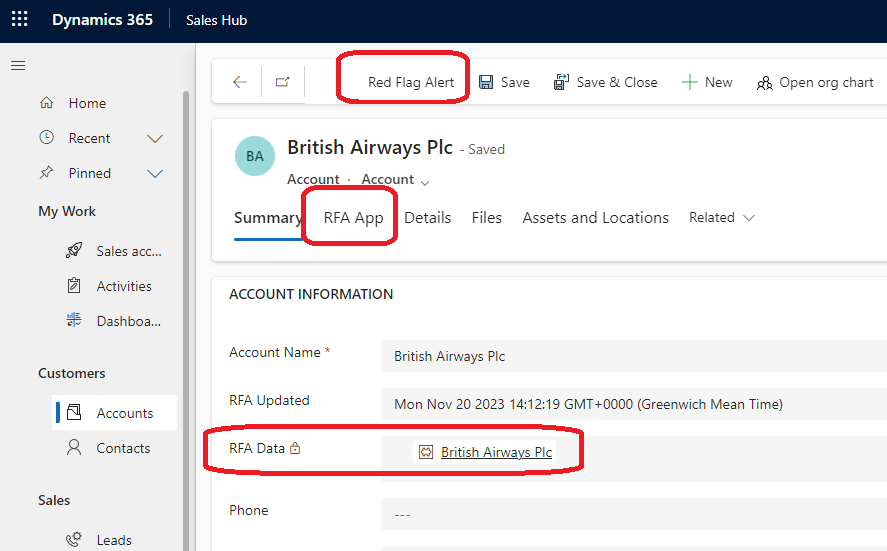
Red Flag Alert App
Opens the App within the tab.
Red Flag Alert Data (Accounts ONLY)
Links to the Custom module RED FLAG ALERT DATA
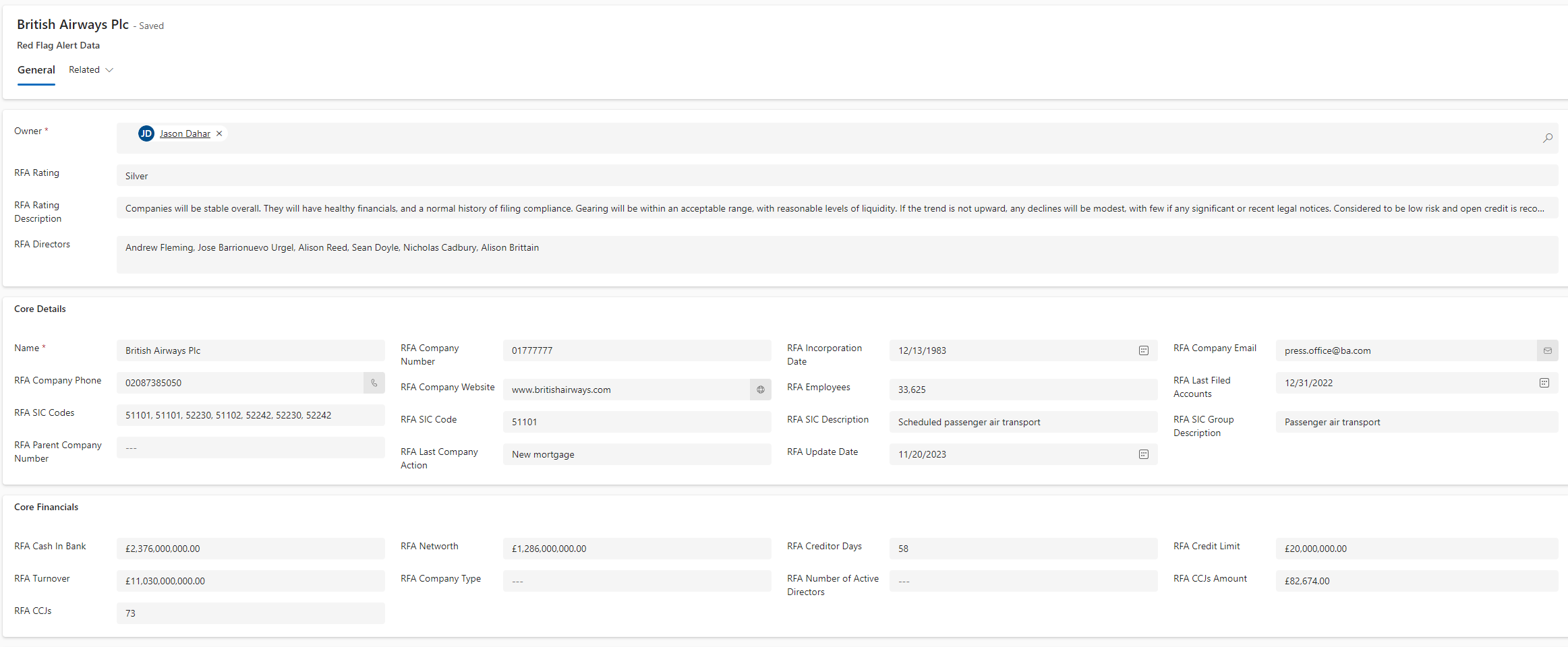
CUSTOM MODULE: Red Flag Alert Data
A Red Flag Alert Data record is generated for every credit-checked Account record. Display all the Red Flag Alert data fields, which have been switched on in field mapping.
USER PERMISSIONS (Admin Only)
You have the capability to assign credits to individual CRM users and control their access to credit checks, contact discovery, and lead discovery. This allows you to manage and allocate resources effectively within your CRM system.
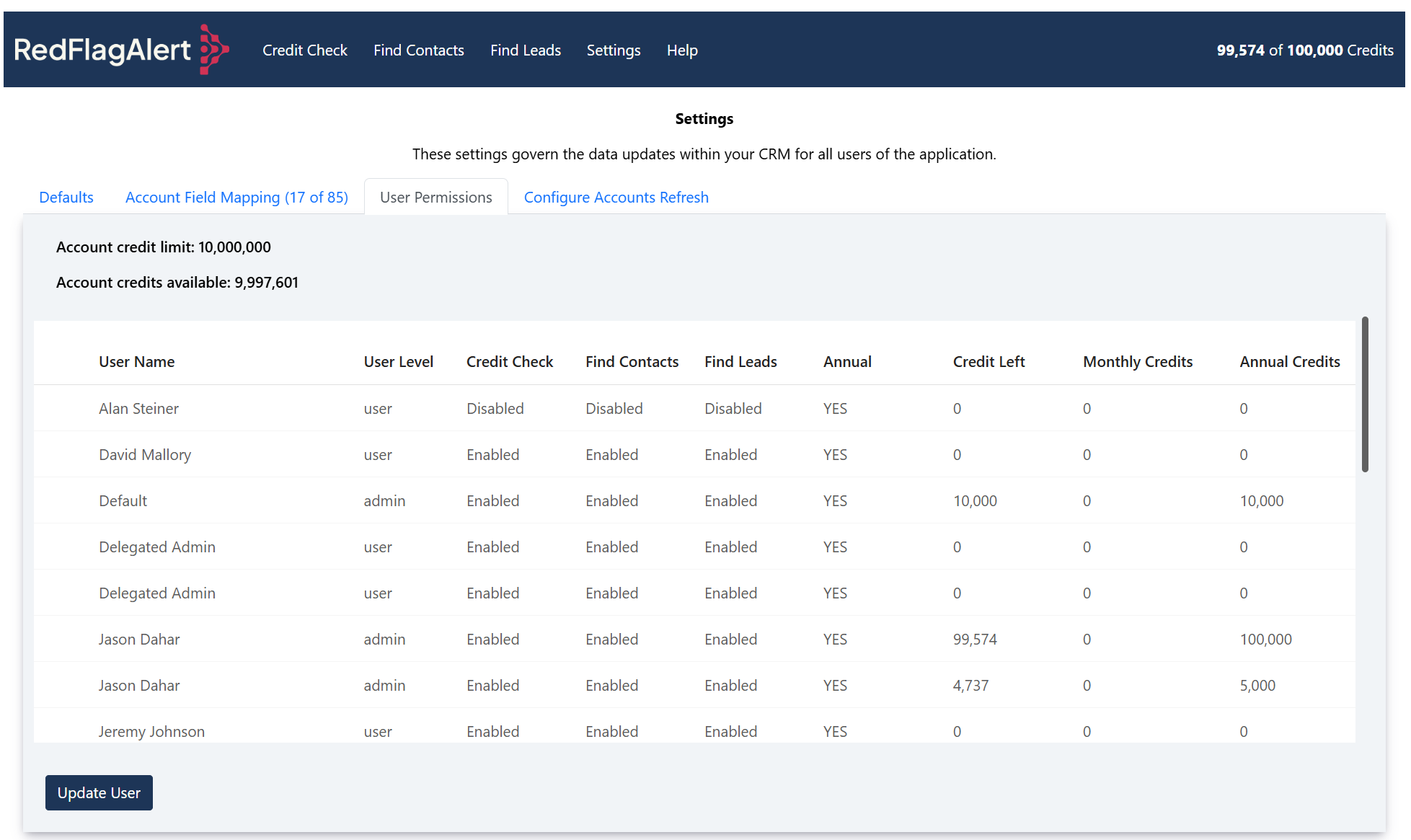
Administrator User
Credit allocation is solely under the purview of the administrator user.
BUTTON: Update User
Use this button to allocate credits and manage access to credit checks, contact discovery, and lead discovery.
CREDIT ALLOCATION TO USERS
Credit Allocation Type: ANNUAL
Credits will be replenished on an annual basis.
Credit Allocation Type: MONTHLY
Credits will be replenished on the 1st day of each month.
SETTINGS (Admin Only)
Configure your default search fields.
Default the search field for the Lead or Account module.
Automatically generate contact entries for directors during the credit-checking process (Accounts only)
When this feature is enabled, contact records linked to the account will be generated for each active director of the company.
Field Mapping
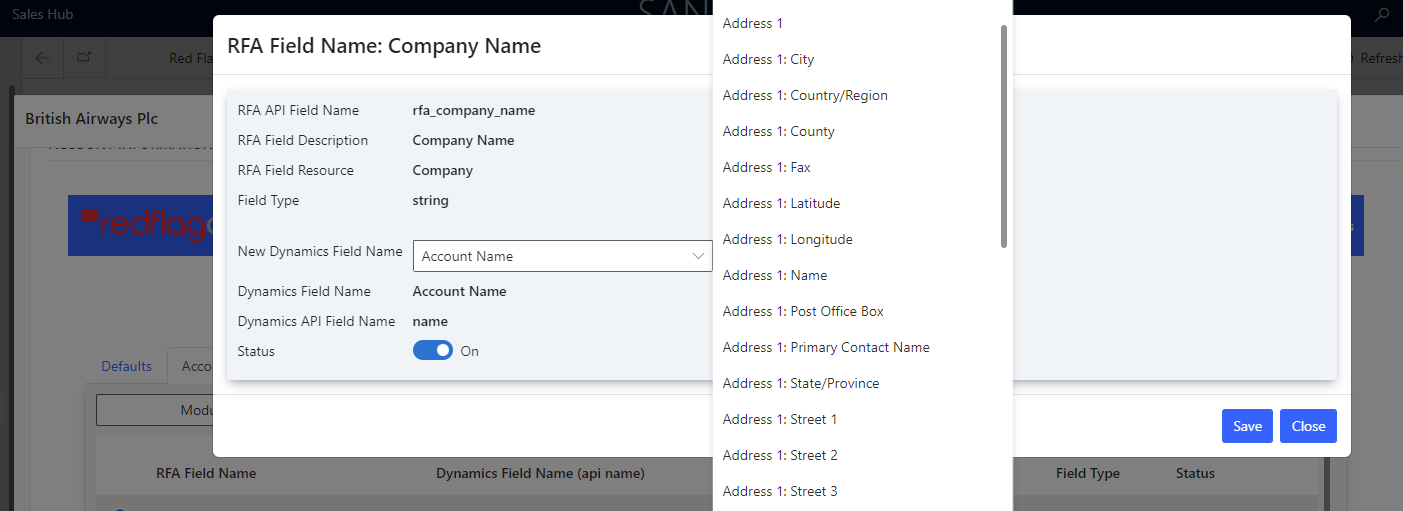
You have the flexibility to link any Red Flag Alert custom field with a compatible field within your CRM system.
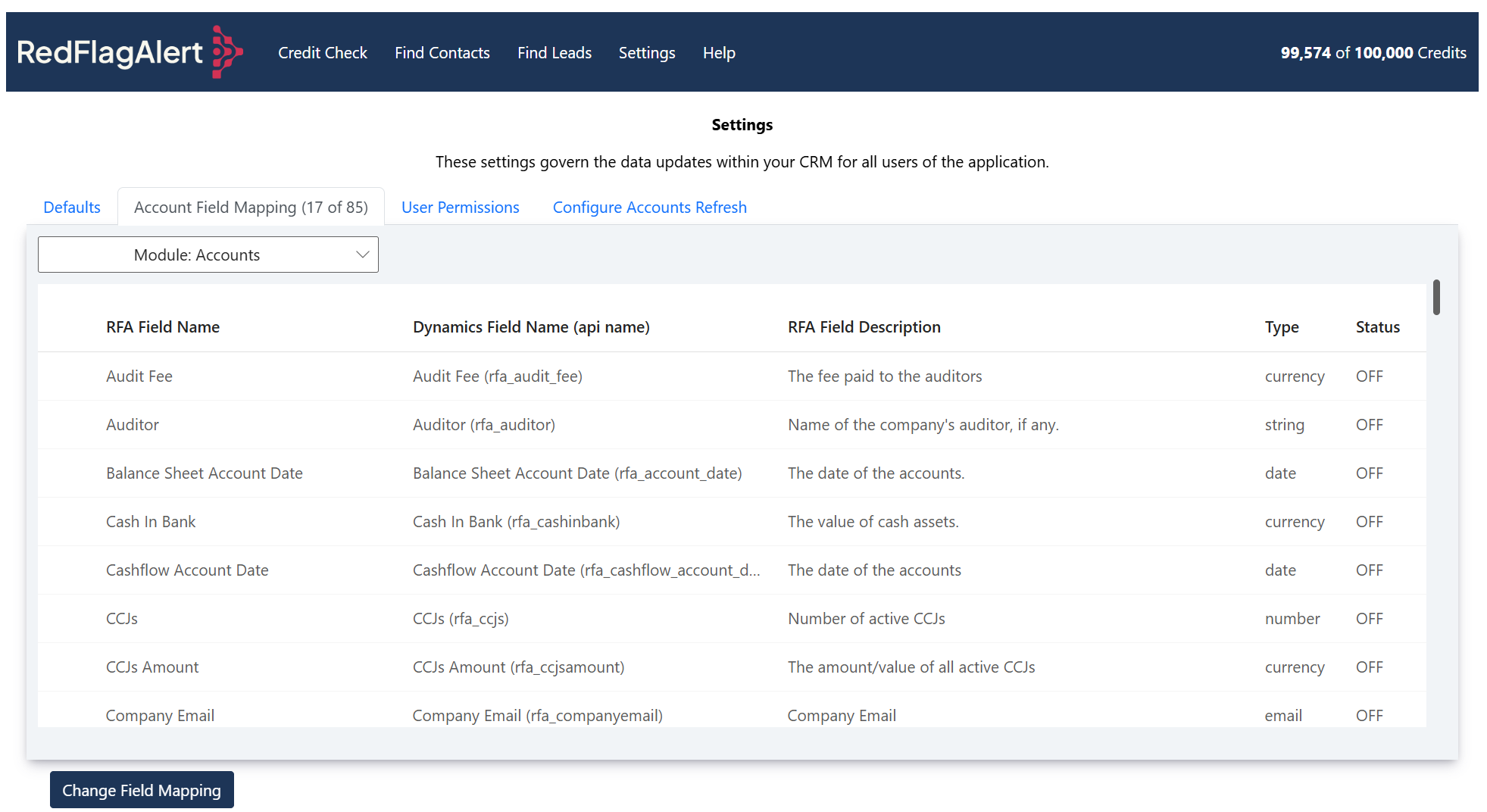
BUTTON: Modify Field Mapping
Use this button to make adjustments to the field mapping.
CREDIT COSTS
All credits are renewed on an annual basis.
Here's a breakdown of credit usage:
Credit Check/Insights: Each credit check consumes one credit.
Find Leads: Each newly created lead consumes one credit.
Credit Check Refresh: No credits are utilised for credit check refresh.
Find Contacts: Discovering contacts does not consume any credits.
Find Leads and Contacts: Finding both leads and contacts also doesn't consume any credits.
MONTHLY ACCOUNTS REFRESH
Our App provides you with the capability to authorise API access to your CRM. This authorisation enables us to refresh your Account records on a monthly basis, ensuring they remain up to date.
We utilise the App account field mapping settings to determine which fields should be updated in your CRM. This mapping configuration ensures that the right data is synchronised accurately.
The monthly refresh is performed on the 1st of each month.
MANUAL ACCOUNTS REFRESH
You can manually refresh all your accounts once per day, using the same capability as monthly accounts refresh.
ACTIVATE – MONTHY ACCOUNTS REFRESH (Admin Only)
First you need to create an application user, you can watch the YouTube video to find out how to do this.
Click Settings and then Click Configure Accounts Refresh.
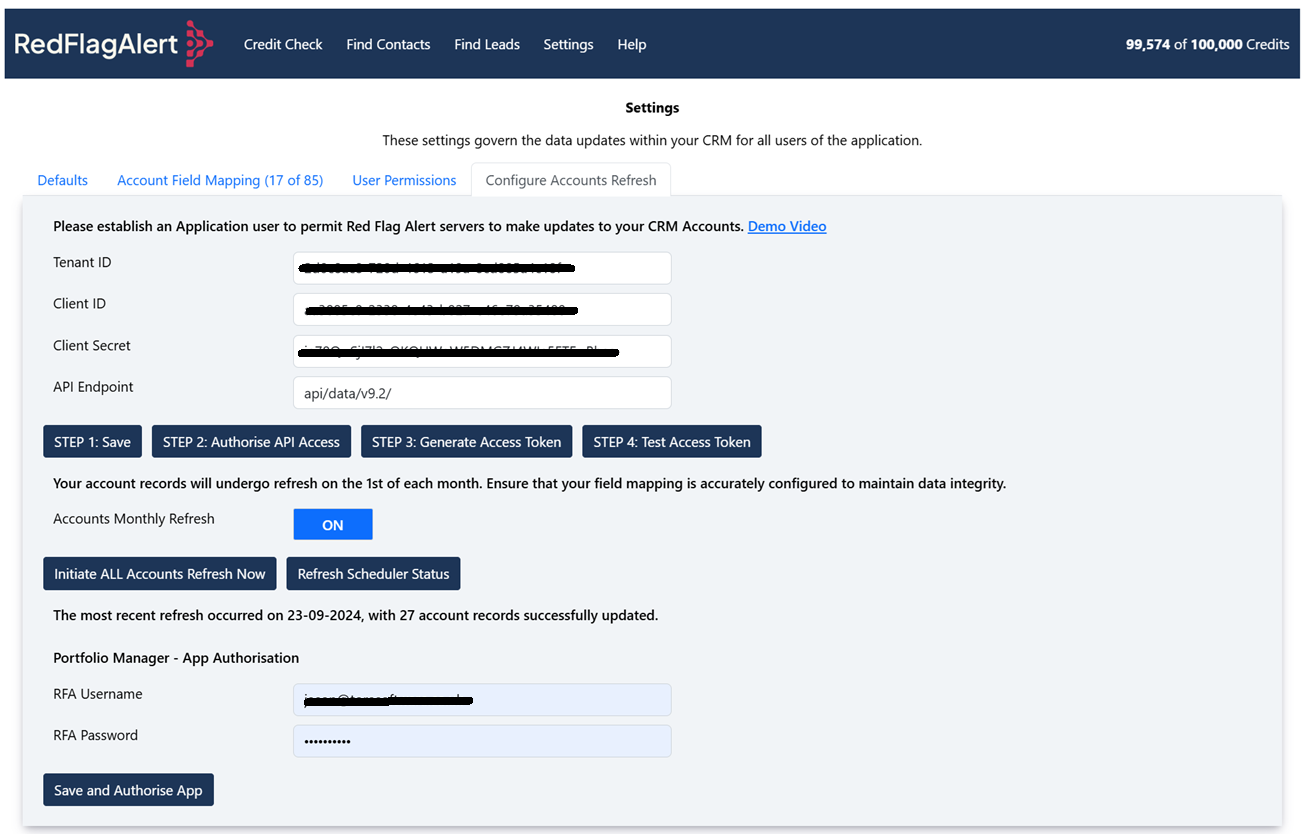
BUTTON: STEP 1: Save - Save your Tenant ID, Client ID, Client Secret, and API Endpoint details.
BUTTON: STEP 2: Authorise API Access - Authorises your details to enable us to create a refresh/access token.
BUTTON: STEP 3: Generate Access Token - Creates and stores your refresh/access token.
BUTTON: STEP 4: Test Access Token - Utilises the refresh token to generate an access token for testing API access.
BUTTON: STEP 1: Save - Save you Tenant ID, Client ID, Client Secret and API Endpoint details.
Monthly Refresh - Toggles the monthly refresh on or off.
BUTTON: Run Accounts Refresh Now - Initiates an immediate update of all your Accounts based on your field mapping settings to determine which fields should be updated.
BUTTON: Refresh Scheduler Status - Allows you to check the status of our scheduler and monitor the progress of updating your accounts.
CREDIT CHECK/INSIGHTS
Update an Account or Lead Red Flag Alert custom fields.
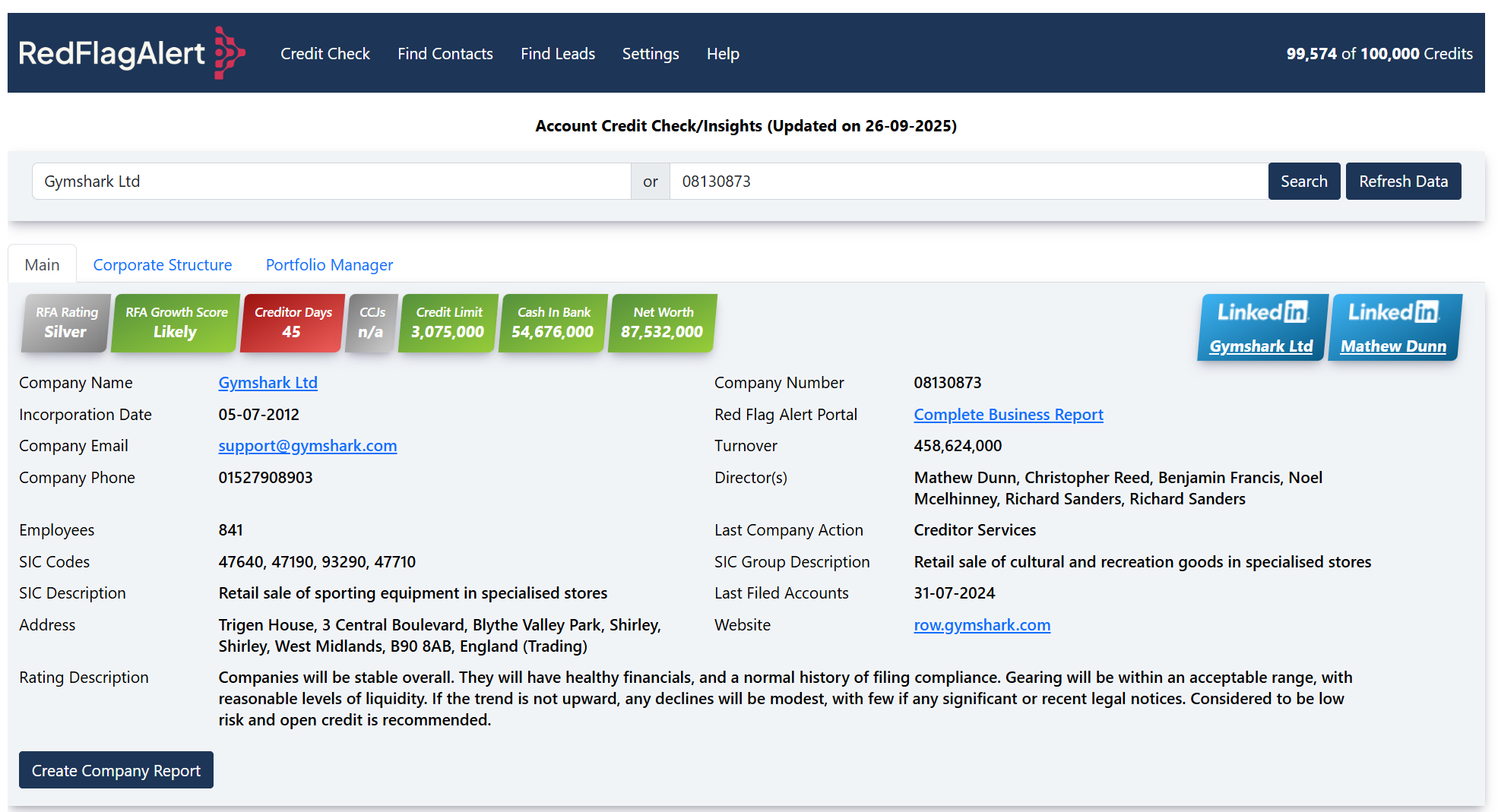
BUTTON: Search
Utilise this button to conduct searches based on either the company name or company number.
BUTTON Refresh Data
By clicking this button, you can initiate the update of all Red Flag Alert data associated with this particular Account or Lead record.
ACCOUNTS ONLY
A Red Flag Alert Data record is generated for every credit-checked Account record.
CORPORATE STRUCTURE
Displays the full corporate hierarchy related to the current company record, including parent and subsidiary companies.
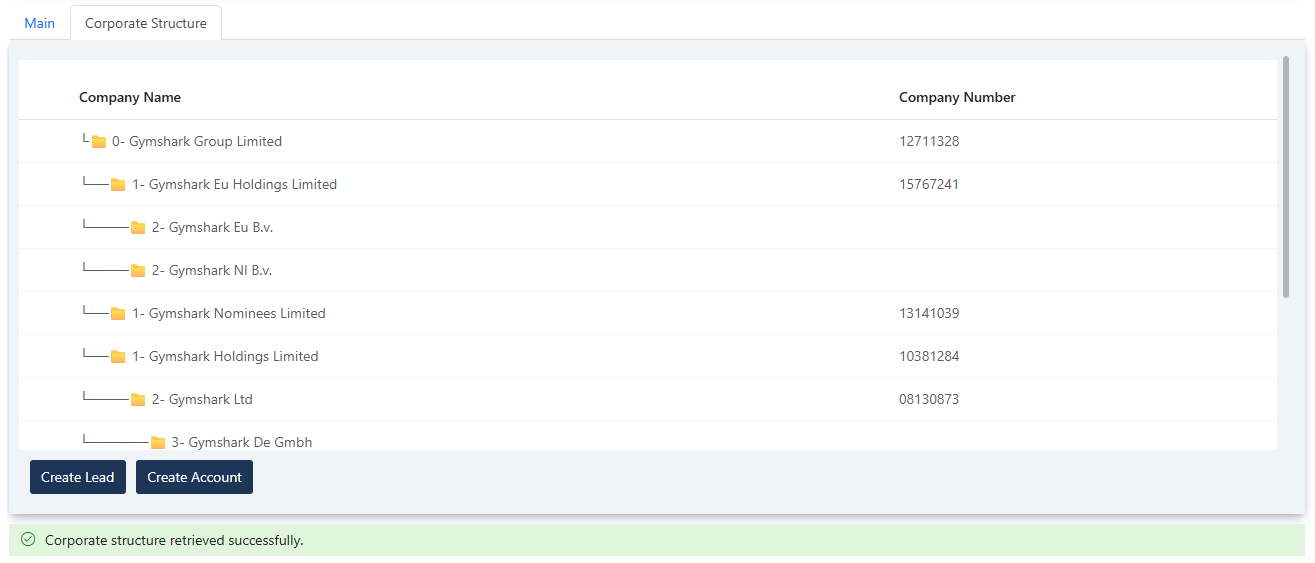
Button: Create Account
Creates a new Account record for the selected company in the table.If an Account already exists with the same Company Number, no new record will be created.
Button: Create Lead
Creates a new Lead record for the selected company in the table.If a Lead already exists with the same Company Number, no new record will be created.
FIND CONTACTS
This action creates new contacts associated with the Account Record or Lead Records.
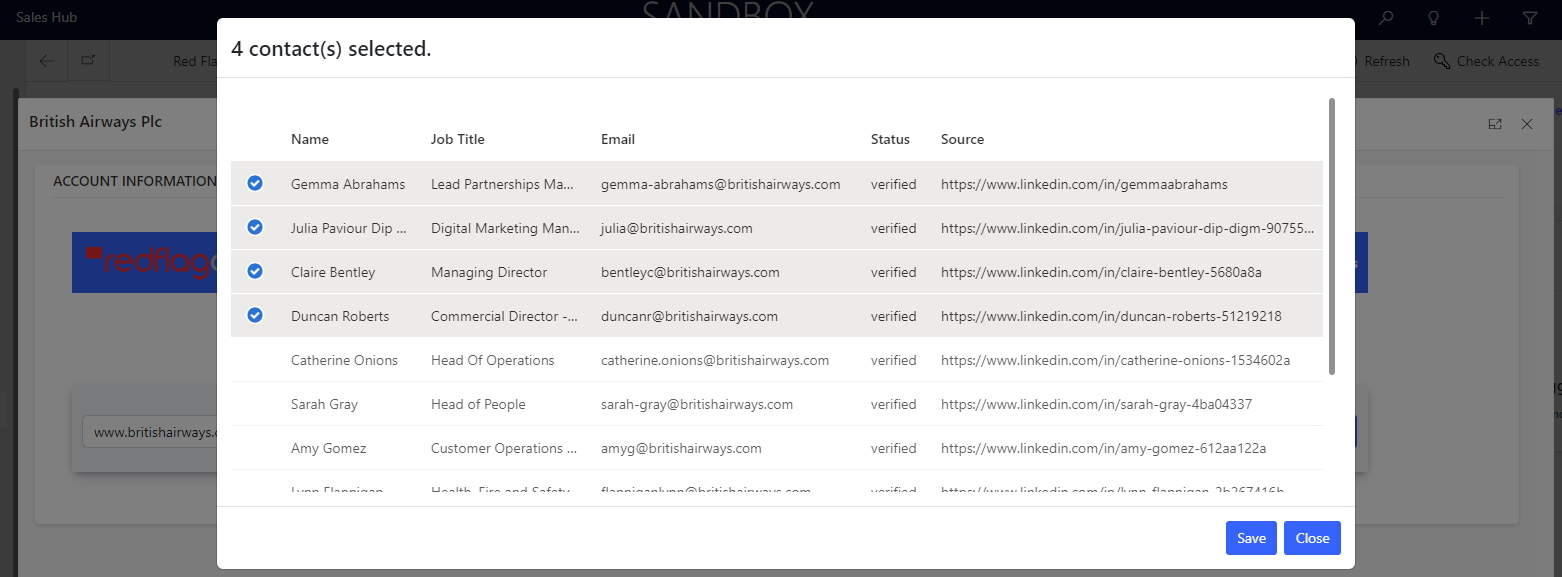
BUTTON: Search
Use this button to search for contacts using the domain name.
Account
Users can generate new contacts/persons, and these will be linked to the Account.
Lead
Users have the ability to create new lead records, including all available company, email, and LinkedIn data for the contact.
BUTTON: Save
Clicking this button will initiate the creation of new contacts or lead records.
FIND LEADS
Generate New Lead Records for Companies with Contact Options
Field: Create Contacts
When this option is enabled, it allows for the creation of new lead records for individual contacts associated with the companies.
Find Leads – Search criteria screen.
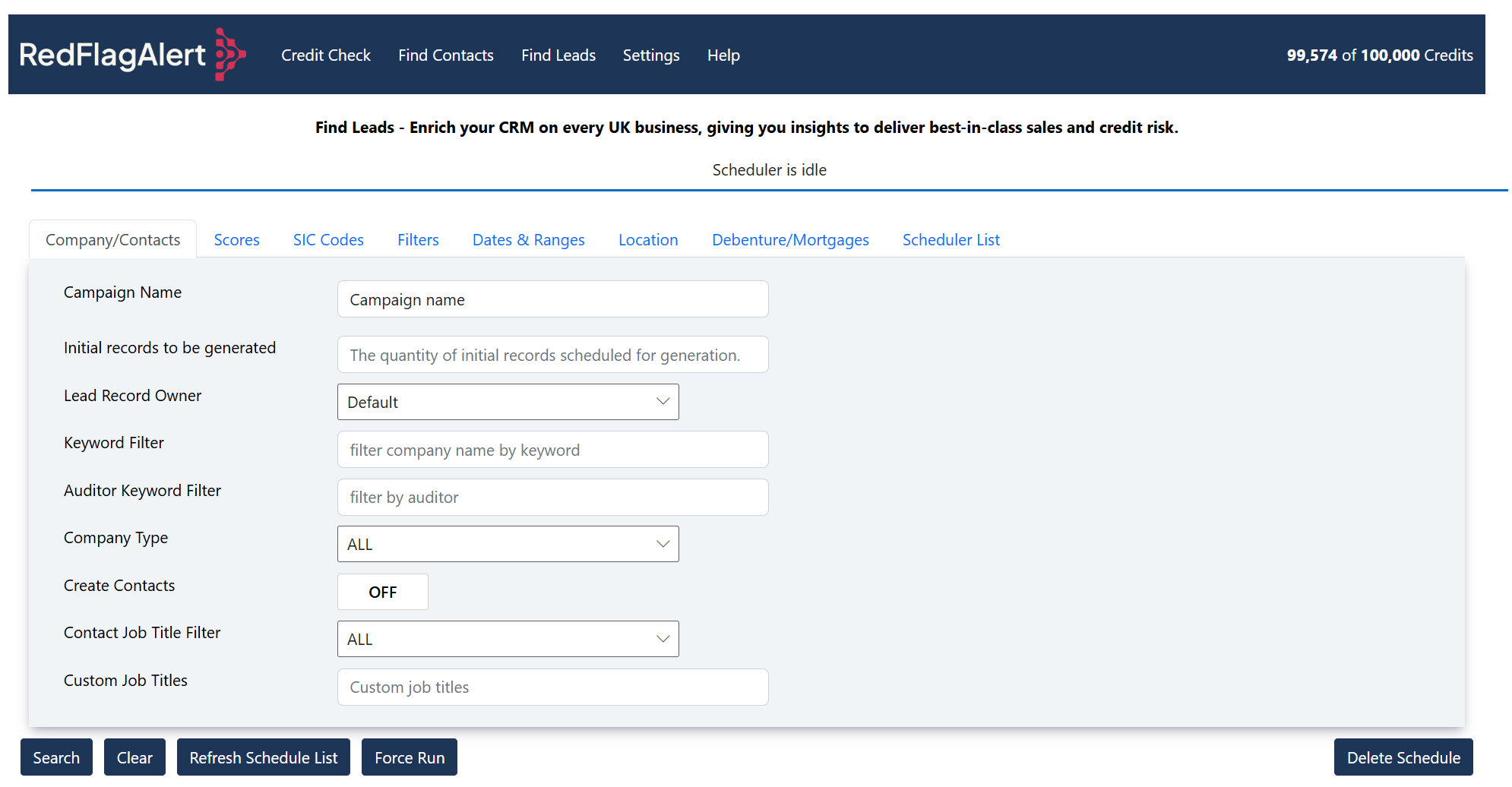
BUTTON: Search
Initiates a search to find all companies that match your specified criteria.
BUTTON: Clear
Clears all the fields used for search criteria, resetting them to their default values.
FIND LEADS – Search criteria results screen.
Showcases all the lead discovery campaigns you've established.
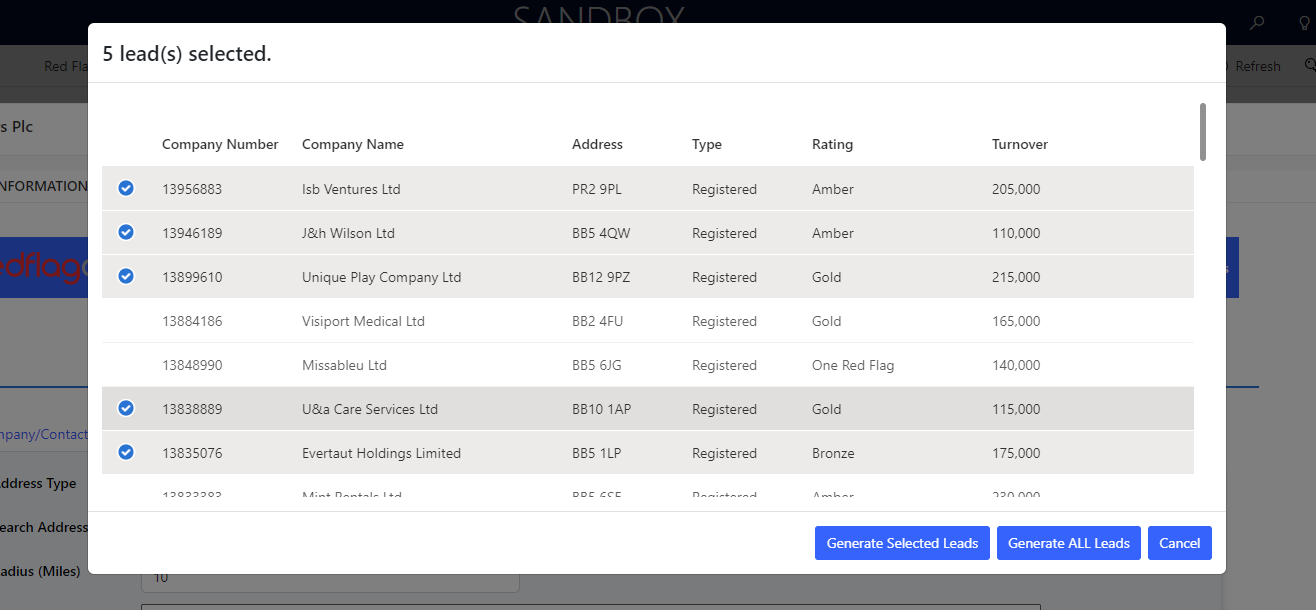
BUTTON: Generate Selected Leads
This button triggers the creation of the selected lead records from the search results table.
BUTTON: Generate ALL Leads
Clicking this button initiates the generation of all lead records that meet your specified search criteria.
BUTTON: Cancel
This button cancels the ongoing search campaign.
FIND LEADS – Scheduler List screen.
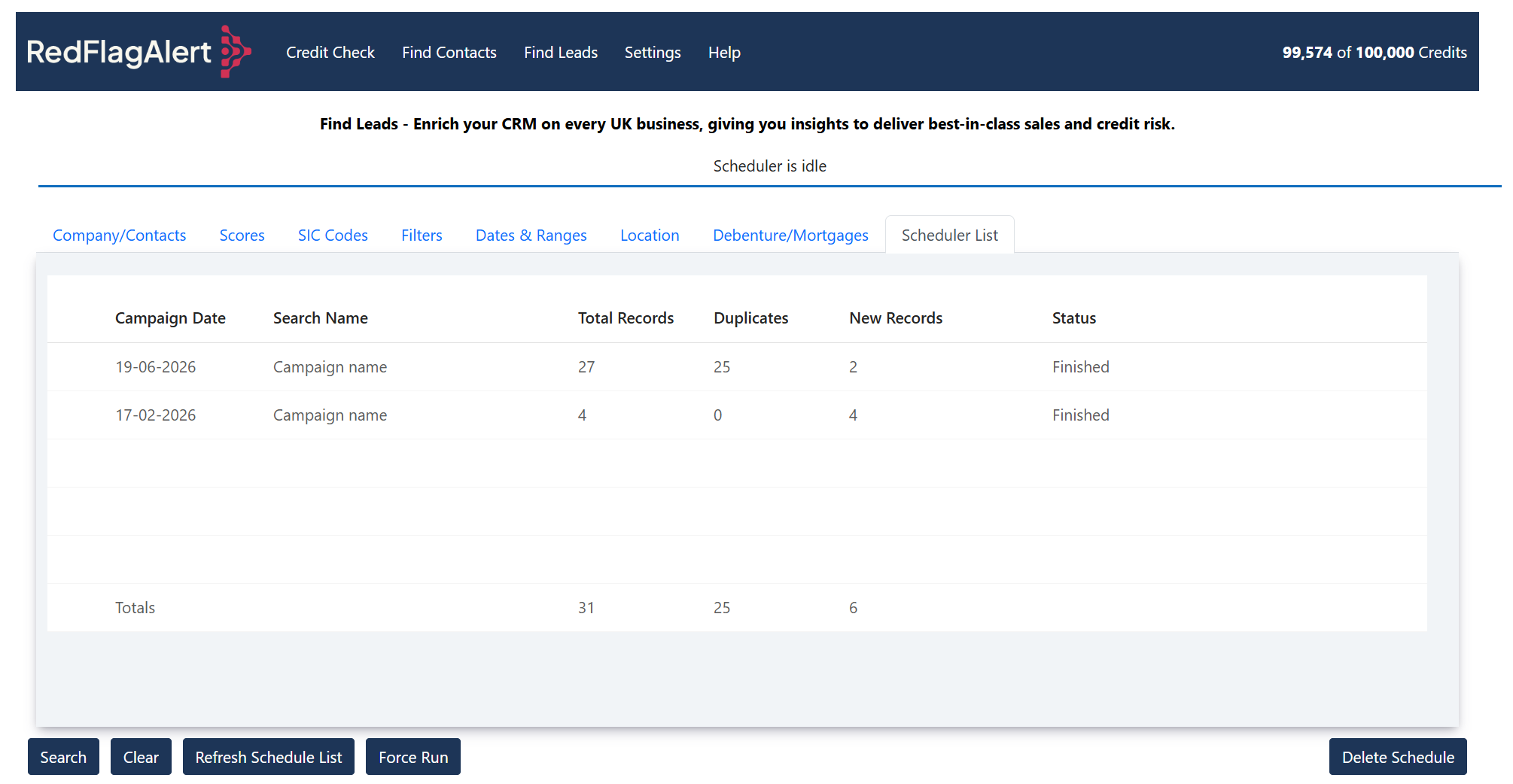
BUTTON: Refresh Schedule List
Use this button to refresh and update the list of schedule records.
BUTTON: Force Run
In case a schedule has failed or timed out, you can use this button to restart it. Rest assured, it won't result in duplicate lead records.
BUTTON: Delete Schedule
This button allows you to delete a schedule that has either finished or failed.
RED FLAG ALERT CUSTOM FIELDS
MODULE: Accounts
MODULE: Contacts
MODULE: Leads
CUSTOM MODULE: Red Flag Alert Data
A Red Flag Alert Data record is generated for every credit-checked Account record.
Before you install
Have you read the user guide and installation instructions for this app?
Please make sure you've reviewed them before installing.